Create Workflow with pre-conditions
1. Create Different Workflow Scenarios
elDoc leverages "No Code" BPM capabilities, enabling every business user to create and set up workflows of varying complexity using the Workflow Designer. You can create an unlimited number of workflows in elDoc.

If you have not yet created your first workflow, follow this quick guide to get started Create your first Workflow in the elDoc.
As the administrator of elDoc, you can configure workflows based on the following scenarios, tailoring the level of flexibility you grant to regular users:
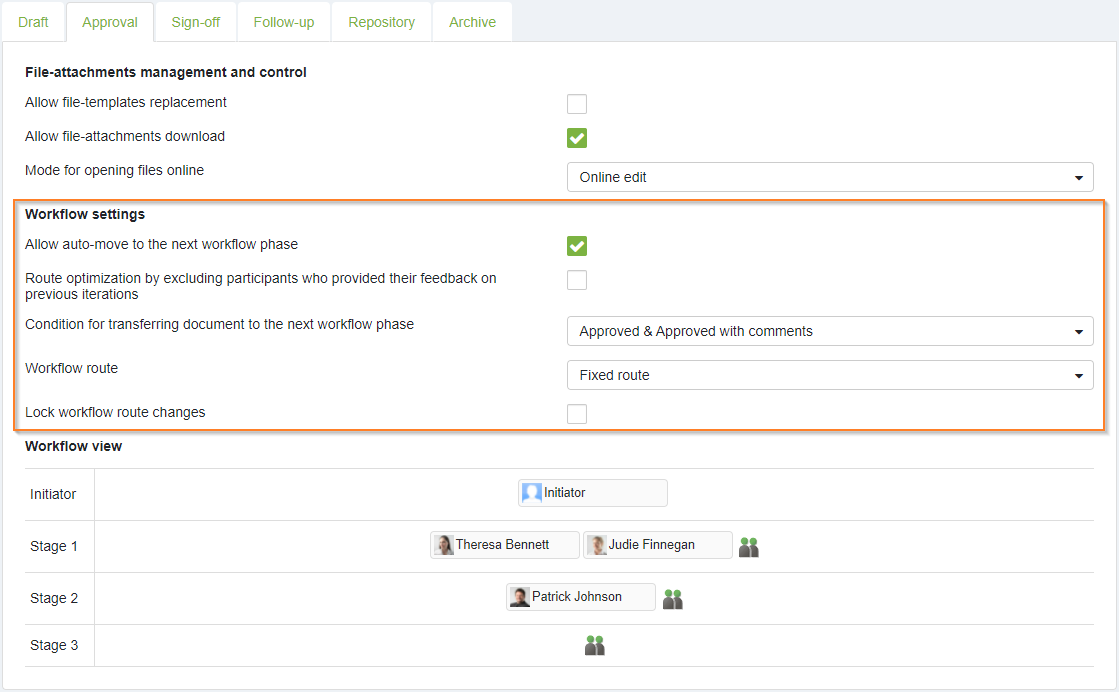
Fixed Route, Lock Workflow Route Changes:
- This scenario strictly controls the workflow phases, setting up rules for document circulation, specifying who shall approve the document, and in what sequence.
Fixed Route, with Possibility for Users to Introduce Changes to the List of Approvers:
- This scenario controls the workflow phases while providing users the flexibility to change the list of approvers for each phase.
Flexible Route:
- This scenario allows users full flexibility to control workflow phases and define a list of approvers "on the fly."
To set these configurations:
- Navigate to Configuration.
- Go to Workflow Designer.
- Select Create New or Edit Existing Workflow.
- Adjust the settings under Workflow Settings.
2. Automatically assign a user's manager to the workflow
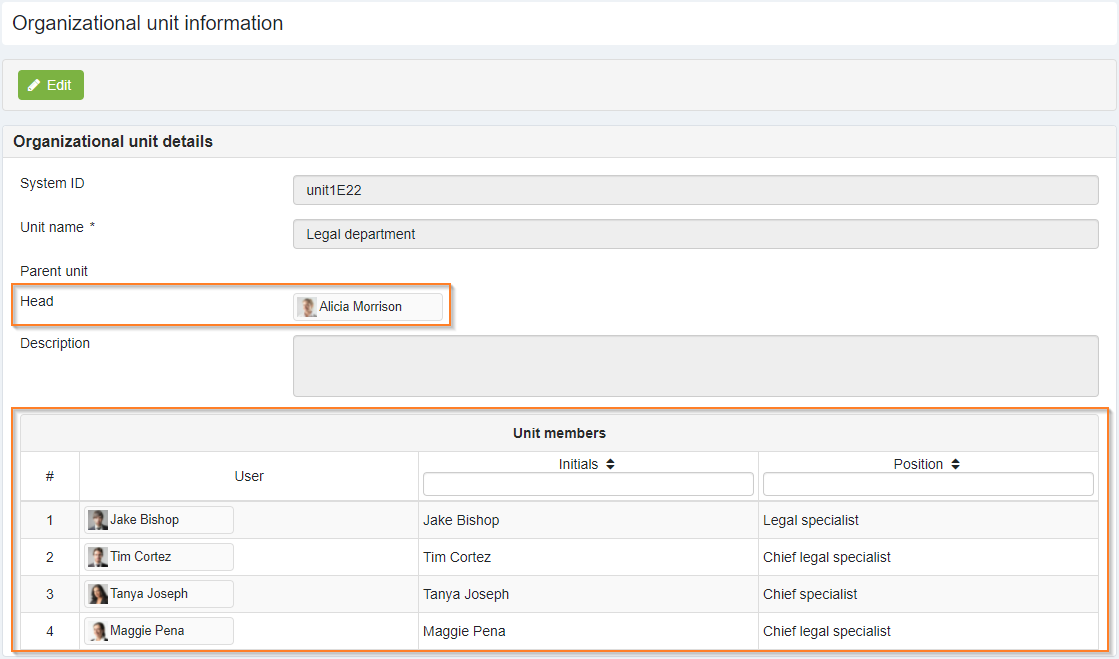
If you have a complex organizational structure and are unsure who the head of a particular user is, you can configure the system to determine the head based on the organization structure set in elDoc. To automatically assign a user's manager (head) to the workflow, follow these steps:
- Ensure that the organizational structure is pre-configured, including the head of the unit and unit members. Learn more: organizational structure administration
- Navigate to Configuration → Workflow designer → Select existing Workflow / Add new one → Enable Edit mode;
- Choose the required workflow phase and set the Fixed route;
Enable option "computed dynamically" and choose the required value.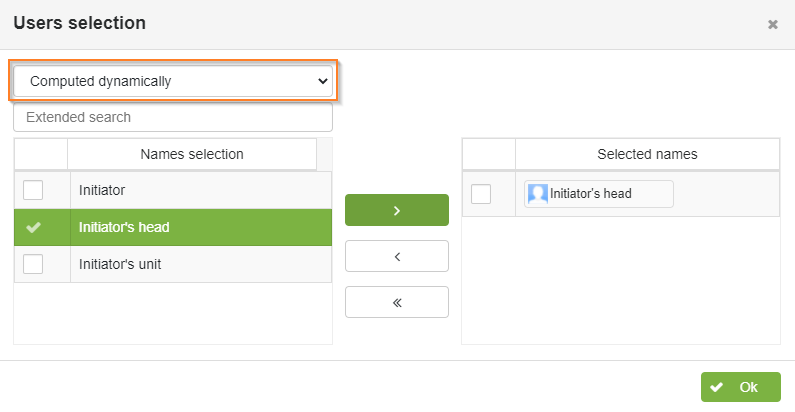
3. Configure different workflow scenarios for a single document form based on predefined criteria (e.g., amount, priority)
For workflows with additional pre-conditions, such as budget thresholds in the procurement process, you can configure different sets of participants. For example, if the budget exceeds a certain amount, include specific participants in the workflow. If it is below that amount, include a different set of participants. To enable such pre-conditions, please follow these steps:
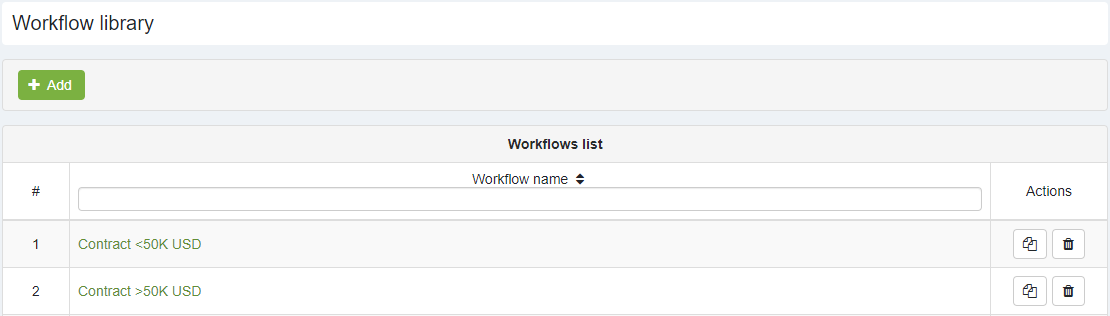
- Create different workflows to handle various scenarios. Learn more: create your first workflow
- Workflow "Contract" < 50K USD with a pre-defined list of approvers and workflow phases.
- Workflow "Contract" > 50K USD with a pre-defined list of approvers and respective workflow phases.
- Create corresponding Document Form. Learn more: create your first document form
- Assign previously created workflows (e.g., Workflow "Contract" < 50K USD and Workflow "Contract" > 50K USD) to the created Document Form.
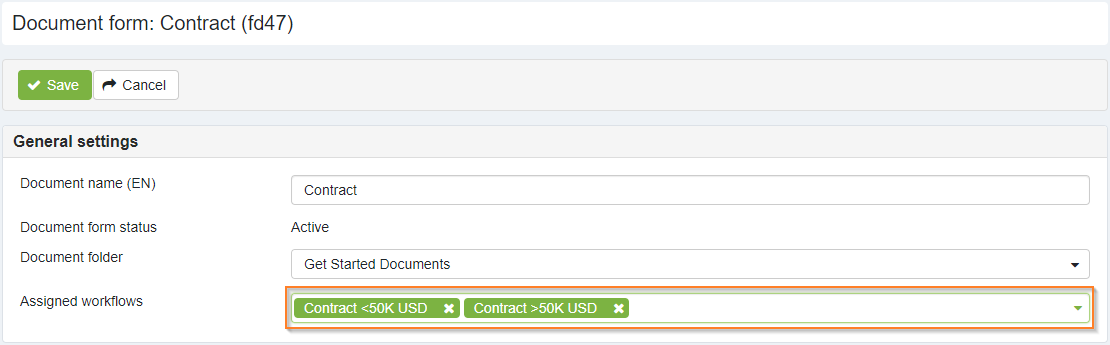
- To verify that the settings are correct, → Navigate to "Create Document" →Choose Document Form → Preview Assigned workflows.
